
How to Use a Password Manager: A Simple Guide to Better Online Security
How to Use a Password Manager: A Simple Guide to Better Online Security
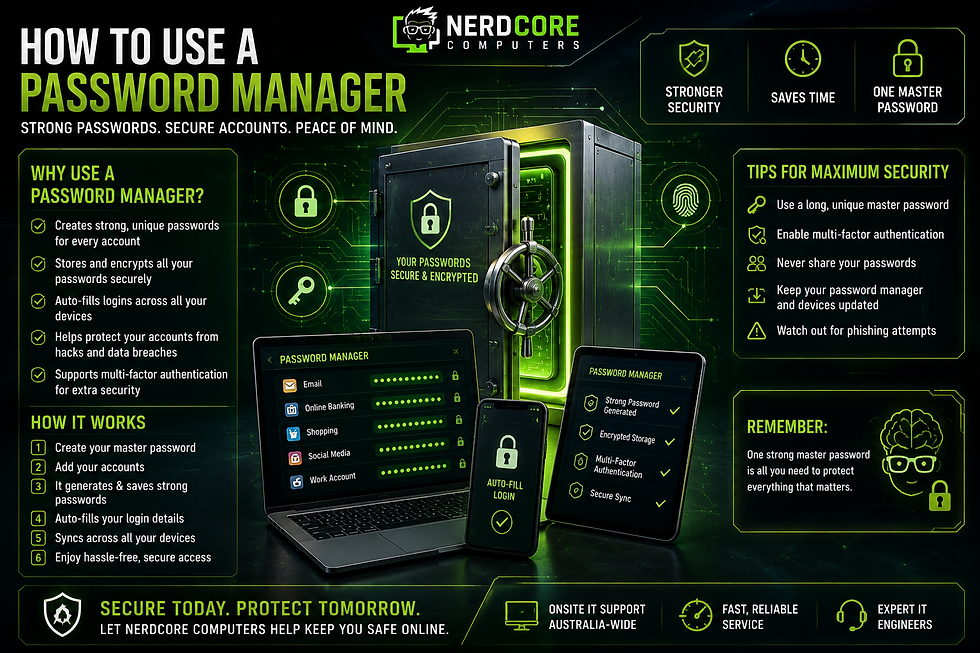
Remembering dozens of passwords for email, banking, shopping, social media and other online services can be difficult. A password manager takes the pressure off by securely storing your passwords, generating strong new ones and helping you log in without having to remember every password yourself.
Why Should You Use a Password Manager?
Think of a password as the key to your digital front door. The weaker the key, the easier it is for someone to break in.
Using passwords such as 123456, password, ABCDEF or 000000 makes your accounts much easier for attackers to compromise. Using the same password across multiple websites creates another serious risk.
If a hacker obtains your password from one website, they may try that same password on your email, banking, shopping and social media accounts.
The safest approach is to use a long, unique password for every account. The problem is remembering dozens of different passwords.
That's where a password manager can help.
What Is a Password Manager?
A password manager is a security application that stores your passwords inside an encrypted digital vault.
Instead of remembering dozens of passwords, you generally only need to remember one strong master password.
A password manager can:
Generate strong and unique passwords.
Store passwords securely.
Automatically fill in login details.
Synchronise passwords across your devices.
Help identify weak or reused passwords.
Support multi-factor authentication.
Store other sensitive information, such as secure notes.
Alert you when passwords may have been exposed or compromised.
Most password managers work across computers, smartphones and tablets, making it easier to securely access your accounts wherever you are.
How Do Password Managers Work?
Once you install a password manager, you can begin adding your online accounts to your secure vault.
When you create a new account, the password manager can generate a long, random password rather than requiring you to invent one yourself.
For example, instead of using a password such as:
Summer2026
you could generate a much stronger, unique password containing a mixture of letters, numbers and symbols.
The password manager then stores it securely so you don't have to memorise it.
When you return to the website, the password manager can automatically fill in your login information.
Why Unique Passwords Matter
Using a different password for every account is extremely important.
Imagine that you use the same password for your email, Facebook, online shopping account and banking account. If one website suffers a data breach and your password is stolen, criminals may attempt to use those credentials on your other accounts.
This is known as credential stuffing.
A password manager makes it much easier to avoid this problem because every account can have its own unique password.
Add Multi-Factor Authentication for Extra Protection
A password is only one layer of security.
Whenever possible, enable multi-factor authentication (MFA) or two-factor authentication (2FA) on important accounts.
With MFA enabled, signing in may require an additional verification step, such as:
A code sent to your phone.
An authentication app.
A security key.
A fingerprint.
Face recognition.
Another trusted device.
This means that even if someone obtains your password, they may still be unable to access your account without the additional authentication method.
What Is a Master Password? How to Use a Password Manager: A Simple Guide to Better Online Security
Your master password is the key used to access your password manager.
Because it protects all of your stored credentials, it should be:
Long.
Unique.
Difficult for others to guess.
Never reused on another website.
Easy enough for you to remember.
Avoid using personal information such as your name, birthday, address, children's names or favourite sports team.
A memorable passphrase made from several unrelated words can be a good approach, provided it is unique and sufficiently long.
Important: Never share your master password with anyone.
What Makes a Strong Password?
If you prefer to create passwords yourself, aim for passwords that are long, unique and difficult to predict.
A strong password should avoid:
Common words.
Simple number sequences.
Names and birthdays.
Keyboard patterns.
Repeated characters.
Passwords you've previously used.
Information that can easily be found on your social media accounts.
For important accounts, using a password manager to generate a random password is generally much easier than trying to invent a different complex password every time.
How to Get Started With a Password Manager
Getting started is relatively straightforward.
Step 1: Choose a Password Manager
Research a reputable password manager that supports your computers, smartphones and browsers.
Step 2: Create Your Account
Install the application or browser extension and create your account.
You'll normally be asked to create a master password. Make this password strong and keep it private.
Step 3: Import or Add Your Existing Passwords
Many password managers allow you to import saved passwords from your browser or another password manager.
You can also add accounts manually.
Step 4: Replace Weak Passwords
Start with your most important accounts, particularly:
Email.
Online banking.
Government services.
Cloud storage.
Social media.
Shopping accounts.
Work accounts.
Replace reused or weak passwords with unique passwords generated by your password manager.
Step 5: Turn On Multi-Factor Authentication
Enable MFA wherever it is available, especially for your email, financial and work accounts.
Step 6: Keep Your Password Manager Updated
Like other security software, your password manager should be kept updated. Updates can include security improvements, bug fixes and compatibility changes.
Popular Password Manager Options
There are several established password management services available, each with different features and pricing.
1Password
1Password offers password storage, password generation, secure sharing and support across major operating systems and browsers. It also includes features designed to help users protect sensitive information while travelling.
Bitwarden
Bitwarden is available across Windows, macOS, Linux, iOS and Android and supports a wide range of browsers. It offers password generation, encrypted storage and multi-factor authentication options.
Dashlane
Dashlane provides password management across multiple devices and includes security features designed to help users monitor and protect their accounts.
Keeper
Keeper Security provides encrypted password storage, secure sharing, biometric authentication and security monitoring features.
LastPass
LastPass provides password storage, password generation and browser-based access, along with options for individuals, families and organisations.
Password Manager Security Tips
A password manager can significantly improve your security, but it is still important to use it correctly.
Use a unique master password: Your master password should not be used anywhere else.
Enable MFA: Add another layer of protection to your password manager account whenever supported.
Don't share passwords: Never send passwords through ordinary text messages, email or social media.
Keep your devices updated: Install operating system, browser and security updates when they become available.
Remove old accounts: Close accounts you no longer use and remove unnecessary stored credentials.
Watch for phishing: A password manager cannot protect you if you willingly provide your credentials to a scammer or fraudulent website.
Review your passwords regularly: Look for weak, reused or compromised credentials and replace them.
Is a Password Manager Worth Using?
For most people, a password manager is one of the simplest ways to improve online security.
Instead of trying to remember dozens of passwords, you can use strong, unique credentials for every account while only having to remember one master password.
Combined with multi-factor authentication, updated devices and good protection against phishing, a password manager can make your online accounts considerably harder for criminals to compromise.
If you currently use the same password across multiple websites, changing those passwords should be one of your first security priorities.


